Instrumentive User Guide
Getting Started
Signing in
When you first use Instrumentive you will be asked to sign in. This lets us back up any data you put into the app, which is handy if you lose your phone with a year’s worth of practice data!
You will also be able to access your data on any device which you log into.
What’s in the app?
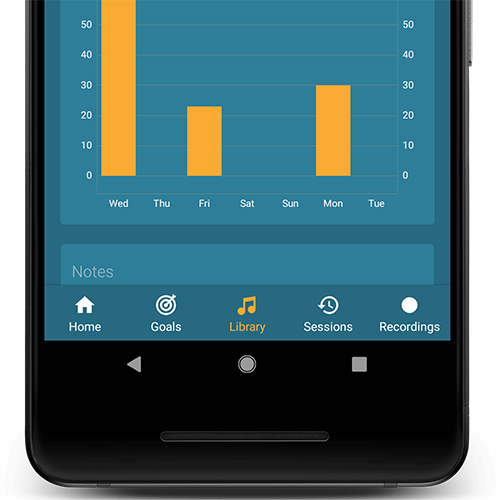
Instrumentive has 5 different tabs:
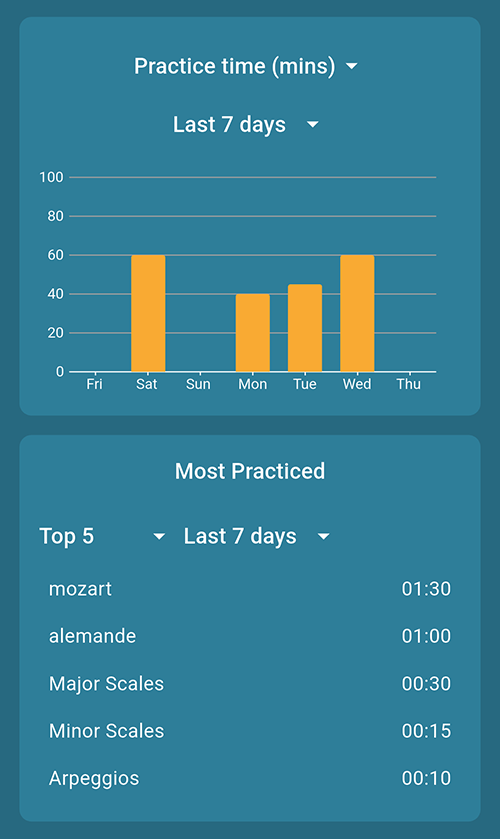
On the Home tab you can quickly see what you have been practicing and view your summary practice stats.
In Goals you can set goals to work towards and log your progress.
The Library lists everything you have been practicing in one place — pieces, exercises, scales, and anything else you want to include.
In Practice Sessions, you can log what you practice, track your time, and record your playing.
Recordings lets you see everything you have recorded using the app. You can create new recordings from within a practice session.
Quick Start
Tap START on the home screen to log your first practice session.
Add the piece or exercise you want to practice. Choose General practice if you want to track your time without naming a specific piece.
Once you have added a practice item you will be taken to the session activity screen.
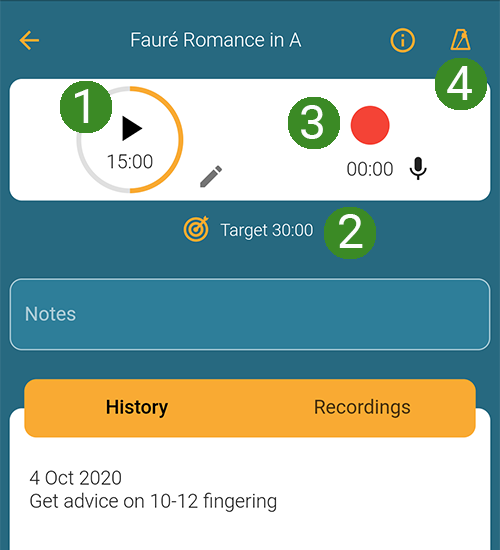
Start the timer to track how long you practice (1.).
Set a target if you want to practice for a certain amount of time (2.).
You can also choose to record your session (3.)
Use the built-in metronome if you need help keeping time (4.).
Finishing your first session
Your session changes are saved automatically as you go. There is no need to tap a Save button.
- Stop the timer (1.) when you finish practicing an activity. If you made a recording, stop the recording too (3.).
- Add a note about how it went and what you want to work on next time.
- Return to the session to review the activities and practice times you have logged. If you want to practice another item, add or select it and repeat the steps above.
- When you have finished, return to the Practice Sessions tab. Open the session from the list to review your practice time and notes. You can also find your recordings in the Recordings tab.
Keep using Instrumentive to log your practice and you will soon have a handy history of everything you have done.
Tracking Your Progress
Open the Home tab for a summary of your practice time, recent activity, and weekly streak. For a guide to the charts, per-piece statistics, and exports, see Tracking Your Progress.